
License sharing
#1
License sharing
Description
This tutorial covers how to share SkyCAD licenses with other users.
This short video explains how license sharing works.
Topics Covered
Licenses, shared licenses, sharing licenses, license sharing.
Main Content
If you have one or more SkyCAD licenses, it is possible to share those licenses with other SkyCAD users.
You simply need to know the email address with which these users created their SkyCAD account, and declare them as users allowed to grab your license(s).
To do so, follow these steps:
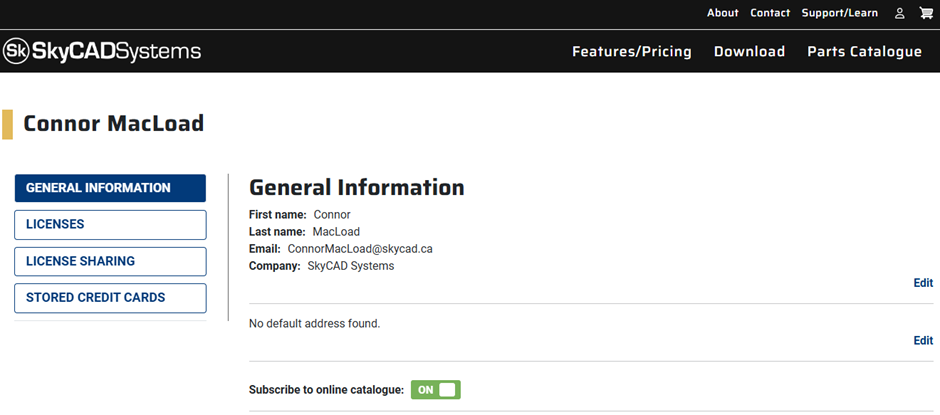
- Hover the mouse cursor on the person icon in the top right corner of the screen

- Select My account if you are already logged in or Log in if you're not logged in yet and proceed to log in
- Once logged in, you should be on your user profile page
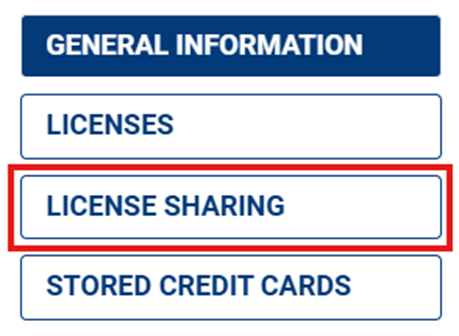
- Select LICENSE SHARING from the menu on the left
- Select + ADD SHARING

- The following dialog box will be displayed:
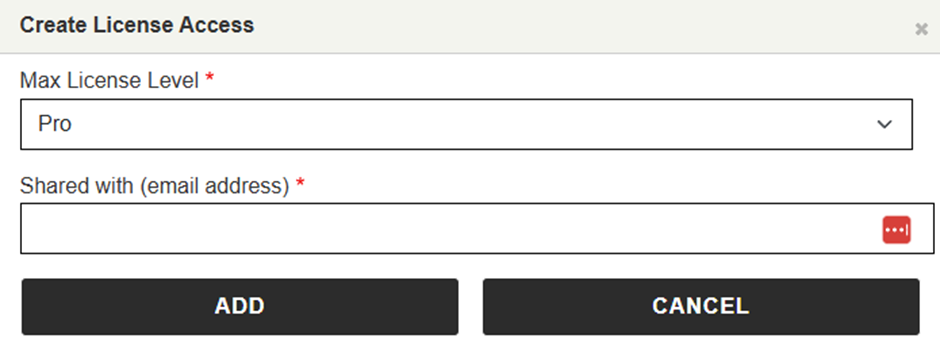
- Max License Level - If you have multiple licenses, and they are of different levels ('Pro' and 'Advanced' licenses), you may want to restrict the user to only be allowed to use Advanced licenses.
(By default, the sharing is allowed to the highest available license. If you only have one license to share, or if all your licenses are the same level, ignore this setting.) - Enter the email address of the user with whom you want wish to share your license(s).
- Click ADD to confirm license sharing
The sharing should be listed.
The next time that user starts SkyCAD, if your license is not already in use, they will be able to use it.
(Once they open SkyCAD, they should see Advanced or Pro in the title bar at the top of the SkyCAD window.)
You can add as many users as you wish. The sharing priority between users is defined as a 'first come/first serve' basis.