
Sharing work across multiple computers
#1
Sharing work across multiple computers
Description
In this tutorial, you’ll learn how to synchronize SkyCAD work across multiple computers.
Topics Covered
Sharing projects, sharing symbols, sharing catalogue, collaborative work, sharing environment.
Main Content
When you install SkyCAD, a folder C:\SkyCAD Environments is created.
This is where all the data and settings are stored, including any additions or changes you make in SkyCAD.
Everything, including projects, symbols, components, layouts and images are all stored in this SkyCAD Environments folder.
This SkyCAD Environments folder can be shared on a network drive (preferred) or shared drive (e.g. Google Drive, Dropbox, etc.) with an unlimited number of users, meaning that multiple users can work using the same environment at the same time.
Data is loaded onto a user's computer on an “on-demand” basis, i.e. when SkyCAD is opened and a project/library/component/etc. is loaded, the data sits in the user's computer’s RAM, so no access to the network is required afterwards while working.
This type of architecture suits most collaborative work requirements, with the following limitation: when two users open the same file (project/symbol/component/etc.), the last user to save wins, which means the other user will lose the changes they made and saved.
So, a certain level of communication and synchronisation is required amongst users for this to work well if they’re working on the same file.
If you’re going to share your environment with other users, we highly recommend sharing the entire SkyCAD Environments folder, not only specific sub-folders or files.
Sharing your environment on a WAN or VPN connection may decrease performance.
Depending on your WAN or VPN specifications and your performance expectations, this performance reduction may be acceptable.
These are the steps to follow to share your environment on a network or shared drive:
- Copy the C:\SkyCAD Environments folder onto your network or shared drive.
IMPORTANT: Place the 'SkyCAD Environments' folder where its full path will be less than 30 characters.
For example, the following path will be too long and not allow SkyCAD to work properly:
'C:\Users\YourName\CompanySharedDrive\SkyCAD Environments'
If you need to have such a long path, there is a simple Windows workaround, called symbolic link, which allows you to keep the long path, while keeping SkyCAD working properly. Follow these steps:- Click the Windows Start button.
- Type CMD in the Start Search box.
- Press and hold down [Ctrl]+[Shift]+[Enter].
- Type the following, then hit [Enter]:
mklink /J "C:\SkyCAD MKLink" "Your long path\SkyCAD Environments" - Follow the rest of this tutorial below. Choose 'C:\SkyCAD MKLink' in step 6.
- Once your SkyCAD Environments folder is on your shared folder/network, make sure it is locally available on your computer and not online-only.
Using Dropbox Basic, this is true by default, so you wouldn't need to worry about it. Using a paid version of Dropbox, you should right-click on the SkyCAD Environments folder, and choose Make available offline.
Using Microsoft OneDrive, right-click on the SkyCAD Environments folder and choose Always keep on this device. - Start SkyCAD
- In the tree view, expand the properties of the root item; SkyCAD
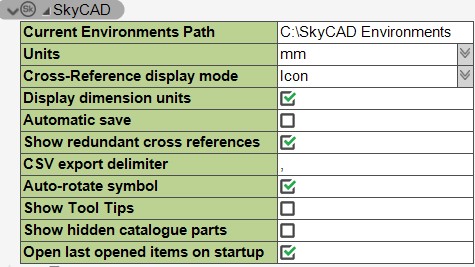
- Double-click on the Current Environments Path field.
The following dialog box should be displayed:
- Select the SkyCAD Environments folder you copied onto the network or shared drive.
If you made a symbolic link (step 1A-E), choose 'C:\SkyCAD MKLink'. - Close and re-open SkyCAD
- Before repeating these steps for the other computers, ensure all computers are using the same version of SkyCAD (V1.3.___)

- Repeat steps 2-6 on the other computers
Important: Keeping SkyCAD (or any application) open overnight is risky.
If the computer does an update, turns off by itself (due to the battery dying or a power failure) or crashes, there is a risk of files which were opened being corrupted.
This has happened with SkyCAD users in the past and has caused issues, sometimes resulting in them losing their projects if they did not make backups.
We strongly recommend closing SkyCAD once you have finished working for the day.