
#1
Inserting and linking off-page references
Description
This tutorial covers off-page references (OPRs), which allow connections to be linked together, even across several sheets.
Topics covered
OPR, insert and link OPR, unlink OPR, off-page reference, link wires, link connections, propagate wires, propagate connections.
Video version

Related tutorials
- Inserting connections (2:42)
- Navigation Tools (4:24)
Written version
To link connections from one sheet to another, go to the Home tab and select Insert and link OPRs (the default keyboard shortcut is F3):

Move the mouse cursor near the end of the connection you wish to link to another connection.
You will notice a blue circle appear there:

Click once and a small arrow is inserted, waiting to be linked with another connection:

Move the mouse cursor near the end of the other connection to which you wish to link, even if it’s on another sheet, until you see another blue circle, then click.
An arrow and cross reference text will appear (the cross-reference text may be formatted differently depending on which type of coordinate system you’re using):

The connections are now linked.
You can either hit Esc to stop inserting OPRs or simply continue inserting OPRs to link other connections together.
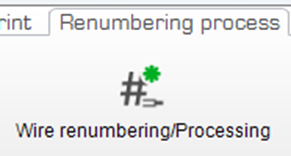
To propagate the wire/net number through the OPRs, go to the Renumbering Process tab and select Wire Renumbering/Processing:


In the above example, it is a simple OPR pair, where each OPR links to only one other OPR.
However, an OPR can link to many OPRs.
For example, if you want to link the OPR which reads (2-E-3) to another OPR, simply follow the same steps above to add another OPR pair.
The result would be a second cross-reference added:

If you double-click on an OPR cross-reference text, you will navigate to where it is linked.
If you double-click on an OPR cross-reference text that shows several cross-references, a dialog box will be displayed to allow you to choose which OPR to navigate to.
Choose the OPR you want and click OK.
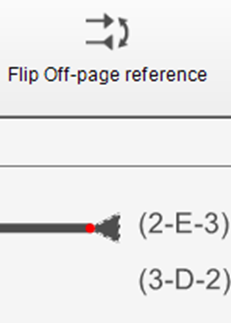
The direction of an OPR arrow can be flipped by selecting the arrow, going to the Home tab and selecting Flip Off-page reference:

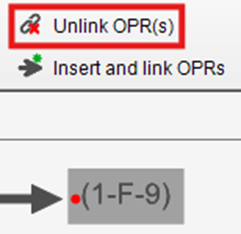
OPRs can be unlinked by selecting one of them, going to the Home tab and selecting Unlink OPR(s):
Related Tutorials
- Inserting connections (2:42)
- Navigation Tools (4:24)