
#1
Showing component properties around a symbol
Description
This tutorial covers how to show component properties on the drawing, such as manufacturer or part number.
Topics covered
Explore properties, assign from catalogue, part number, show component property.
Video version
Related tutorials
- Catalogue tools (12:56)
- Creating/modifying symbols and blocks (6:36)
- Block generator (8:22)
- Pin-out blocks/attributes (3:00)
Written Version
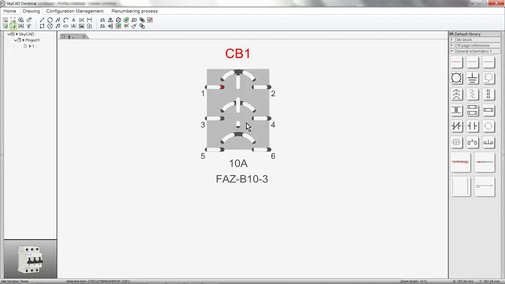
In some cases, you may want symbols to show more information, such as the part number, manufacturer, or other information about the component.
To do that:
- Select the symbol inserted on the sheet
- Go to the Drawing tab and select Component property
- Select the property field you want displayed
- Click OK
The information will be displayed, as long as the property value is not blank.
Click and drag the text attribute to move it where you want it.
(It is a good idea to go to the Drawing tab and activate Show empty attributes to ensure the new text attributes is not clashing with an existing one.)
If you always want that property to be shown whenever that symbol is used, right-click on the symbol and choose Save.
Choose Yes to overwrite the original symbol.
This will affect past, present and future instances where this symbol is used, even on projects with a closed revision.
To see the change take place on your current project, close and re-open it.
If you only want future uses of this symbol to show the property, you can either do a Save As instead of a Save, or (if you have a Pro license) right-click on the symbol and choose Open Block, then create a new revision of the symbol, make the change and Save.