
Drawing tools overview
#1
Drawing tools overview
Description
This tutorial covers standard drawing tools available under 'Drawing' tab.
Topics covered
Grid, snap to grid, sub-grid, snap to sub-grid, drawing icons, line segment, rectangle, circle, elipse, colour, chamfer corners, polyline, spline, arc, add text, font, size, cross-reference text, image, dimensions, revision cloud, rotate, flip, scale, bring to front, send to back, construction points, objects, modify object properties, copy/paste objects, multi-paste, format painter.
Video version
NOTE: This tutorial video was created using an older version of SkyCAD.
Ribbon buttons' appearance, names and positions may differ if you're using version 1.3.25 or higher.
Thank you for your patience while we update this tutorial.

Related tutorials
- Creating/modifying symbols and blocks (6:36)
- User interface overview (6:32)
- Align objects (1:00)
Written version
If you select any item for which the Drawing tab makes sense (sheet, an item on a sheet, a symbol opened in editing mode) the Drawing tab becomes available.
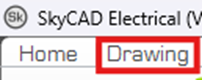
Depending on what item is selected, the displayed commands in the Drawing tab may change, since only pertinent commands are displayed.
Below are the list of commands and how they work.
UI/UX (User Interface / User Experience)
Show Grid – Shows the grid (grid steps are 3mm, 0.118 in). All connection points must be on this grid.
Snap to grid - Drawing objects, and some other objects, will snap to the grid. Anything with a connection point will always snap to grid, since connection points must be on the grid.
Show Sub-Grid – There are four sub-grid steps to each one grid step.
Snap to sub-grid - When you use drawing tools, the drawing objects will snap to the sub-grid.
Axis snap – Used only in layout views. See Snapping to objects in panel layouts tutorial.
Show connection points – Shows the connection points of symbols. Mostly helpful when creating a symbol by following the Creating/modifying symbols and blocks tutorial.
Show empty attributes – Some text attributes use queries to display certain information. If said certain information is blank, then the text attribute is not visible. Turning on Show empty attributes shows all those invisible hidden text attributes. This is mostly helpful when creating/modifying title blocks, symbols or blocks.
Large cursor cross – Helpful to align objects upon insertion.
Drawing objects
Line segment – Click once to define the starting point, move the mouse, then click again to define ending point.
Once a drawing command (line segment, rectangle, etc.) is selected, it remains active so you can add as many as you like one after another.
Hit ESC when you're done drawing.
Rectangle - Click once to define the first corner, move the mouse, then click again to define the opposite corner.
Hit ESC when you're done drawing.
To chamfer the corners of a rectangle, select an existing rectangle, go to the Drawing tab, select Chamfer rectangle corners, then scroll the mouse wheel.
Hit ESC when you're happy with the result.
Closed objects, such as rectangles and circles, can be filled with color.
To fill the object with color, double-click on the drawing object to reach its properties, check the Fill property, then define the Fill color property.
Circle (diameter) – Click once to define a point on the circumference, move the mouse, then click again to define the opposite point on the circumference.
Hit ESC when you're done drawing.
Circle (radius) – Click once to define the centre, move the mouse, then click again to define a point on the circumference.
Hit ESC when you're done drawing.
Polyline – Click once to define the starting point, move the mouse, click again to add another point on the polyline, repeat as needed, double-click to define the end point.
To close the polyline (make the start and end points have the same position) hold SHIFT when double-clicking.
Hit ESC when you're done drawing.
Spline – Exactly the same method as polyline (above), except a curve is created.
Hit ESC when you're done drawing.
Arc – Click once to define the starting point, move the mouse, click again to define the next fixed point, move the mouse, then click again to define the end point.
Hit ESC when you're done drawing.
Ellipse – Click once to define the first construction point (which will likely not be on the circumference itself), move the mouse, then click again to define the second construction point.
Hit ESC when you're done drawing.
Text – Click once to define the starting point. A dialog box will be displayed. Write in the Value property what you want displayed. The Name property can be used to note the purpose of the text.
Color, style, font, alignment (justification) and other properties can be defined from this dialog box.
If you select an existing text, you can go to the Text Style tab to quickly modify common properties, such as Word Wrap.
Hit ESC when you're done drawing.
Component property – Please refer to the Showing component properties around a symbol tutorial.
Image – After choosing an image to import, click once to define the first corner, move the mouse, and click again to define the other opposite corner.
When an image is imported, a copy of it is saved to \SkyCAD Environments\Standard Environment\Images
Dimension – Click once to define the starting point, move the mouse, click again to define the end point, move the mouse, click again to define where the dimension text should be.
Hit ESC when you're done drawing.
Double-click the dimension object (not the text) to explore its properties.
Double-click the dimension text to modify the length.
Revision cloud – Draw the basic shape and SkyCAD will automatically give it the “revision cloud” appearance. Click once to define the starting point, move the mouse, click again to add another point to the revision cloud, repeat as needed, double-click to close the revision cloud.
Hit ESC when you're done drawing.
Re-sizing drawing objects
To re-size an object, select it, then find the two red dots on the drawing object.
These are called the construction points and can be clicked and dragged to re-size the object.
To change color, thickness or other properties, double-click on the drawing object to explore its properties, then change what you want.
If you adjust the properties of any drawing object, all future drawing objects (even if it’s not the same type of drawing object) will adopt the same properties.
For example, if you change the color of an object to blue, all subsequent drawing objects will also be blue, while existing objects remain unchanged.
To quickly modify the properties of many existing drawing objects, see Format Painter below.
Copying and pasting
There are two different ways to copy and paste.
The first method is to right-click on an object, select Copy, then right-click where you want the copy to be placed and choose Paste.
(The keyboard shortcuts CTRL+C and CTRL+V can also be used.)
The second method is to simply click and drag the object but hold the CTRL key when releasing the mouse button.
SkyCAD will ask how many copies you want.
Once you enter the number of copies you want and click OK, the copies will appear and be placed equidistant from each other.
These copy-and-paste principles can be used on multiple objects or even groups of objects.
For example, you could copy and paste entire circuits like this.
Modifying objects
If certain objects are selected, some other commands may be available:
Rotate 90 left – Rotates the object 90 degrees to the left.
Rotate 90 right – Rotates the object 90 degrees to the right.
Rotate object – Scroll the mouse wheel to rotate in small increments.
Flip horizontally – Flips the object horizontally.
Flip vertically – Flips the object vertically.
Create graphical grouping – Please refer to the Making graphical groupings tutorial.
Create graphical block – Please refer to the Creating/modifying symbols and blocks tutorial.
Create title block – Please refer to the Creating a new title block tutorial.
Add connection point – Please refer to the Creating/modifying symbols and blocks tutorial.
Add cross-reference text – Adds a cross-reference text to the symbol.
If the symbol is linked to another symbol, a cross-reference will be displayed.
If the symbol is not linked to another symbol, no cross-reference will be displayed.
Format painter – To quickly modify the properties (such as the color) of many existing drawing objects, first modify one only, then select the drawing object, go to the Drawing tab, select Format Painter, then click on the other drawing objects you want modified.
The modification(s) will be applied from the source object to the other objects.
Bring to front – Moves selected object to the top of the drawing's display order. This command is particularly useful for ensuring that important elements, such as lines or text, are visible over other overlapping objects.
Send to back – The opposite of Bring to front above.
Explode graphical block – The opposite of Create graphical block above. This will unmake a symbol into its individual drawing objects. The symbol will no longer be linked to a component.
Scale with mouse scroll – Scroll the mouse wheel to scale the object.
Specify scale factor – This displays a message box which states the current scale factor of the object. Change the value to scale the object, then click OK.
Related tutorials
- Creating/modifying symbols and blocks (6:36)
- User interface overview (6:32)
- Align objects (1:00)