
Converting heavy layouts to images to improve performance
#1
Converting heavy layouts to images to improve performance
Description
This tutorial explains how to reduce slow performance (lag) by converting component layouts with many drawing objects into images.
Topics covered
Panel layout, layout view, component layout view, dwg import, dxf import, heavy layout, lag, slow, performance, time
Main content
Components can have a layout, which serves as the graphical representation in a panel layout.
In some cases, the graphical sub-elements used to create these layouts are imported from external formats, such as DWG or DXF.
These imported files can contain hundreds or thousands of individual elements, causing lag in your project, especially when a panel layout contains numerous component layouts using an excessive amount of graphical sub-elements.
For example, in the screenshot below, the location layout has thousands of graphical sub-elements, which provides a very detailed layout, but negatively affects performance.
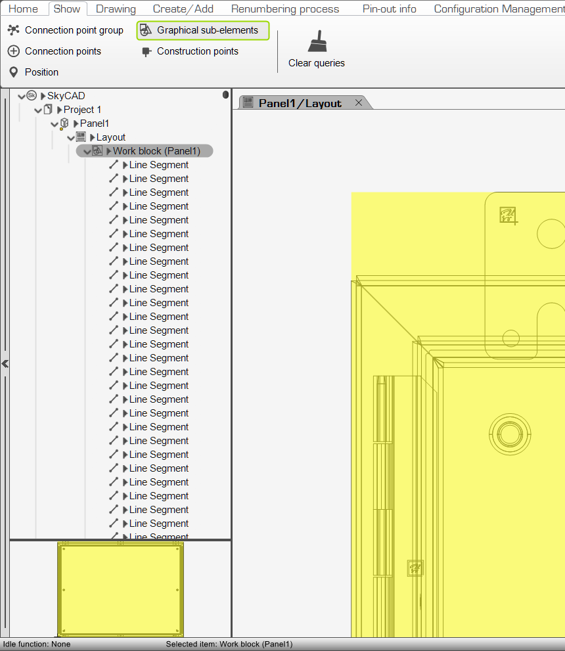
To easily identify such heavy layouts and improve performance by converting them into images:
Select the project in the tree view, go to Show tab and select Location layouts
Select all the listed location layouts, go to Show tab and select Show components with heavy layouts
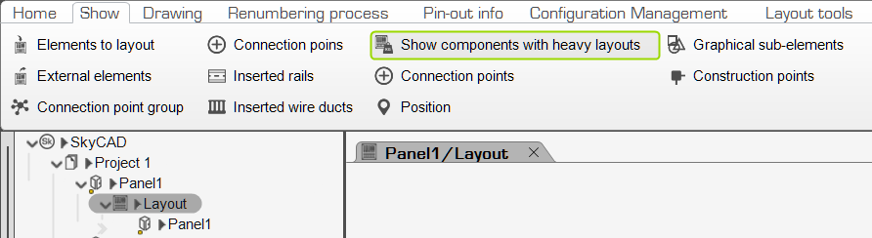
Select one of the listed components with a heavy layout, go to Layout tools tab and select Convert layout to image

Right-click on the component and click Save to save the changes to the catalogue part
Repeat steps 3-4 for the other components with heavy layouts.
Note: if several listed components with heavy layouts are using the same catalogue part, you need only follow steps 3-4 for one of those components, since step 6 will update the othersClose and reopen your project to refresh it
If you wish to avoid following these steps in future, instead of Importing DWG/DXF files which contain a large number of graphical sub-elements to Create a component's layout view, you can convert the DWG/DXF file to an image instead.