
Inserting connections
#1
Inserting connections
Description
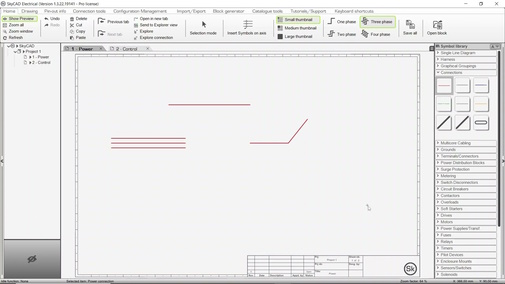
This tutorial covers single-phase and multi-phase connection insertion, which prepares the schematic for the insertion of symbols.
Topics Covered
Connection, power connection, control connection, connection dots, single phase, multi-phase, 1-phase, 2-phase, 3-phase, wire.
Video Version
Related Tutorials
- Replace connection type (1:00)
- Creating new connection types (4:34)
- Numbering process (6:30)
- Inserting symbols (2:09)
- Inserting and linking off-page references (2:11)
Written Version
To insert connections, a sheet must be open in the main view tab area (see the Creating a new project & adding sheets tutorial to add sheets to a project).
To insert a connection:
- Open the Connections symbol library folder
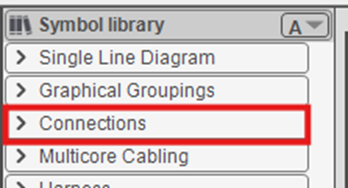
Select a connection symbol (e.g. Power connection, Control connection, etc.)
From the Home tab, choose One, Two, Three or Four phase
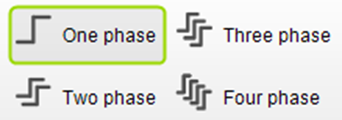
If you selected One phase:
Click on the sheet where the connection should begin
Move the mouse cursor where the connection should end (hold SHIFT to override orthogonality if desired)
Click again to finalize
Repeat steps 1-3 above to continue drawing, right-click at a different position on the sheet to start drawing a new one-phase connection, or hit Esc to stop drawing
If you selected Two, Three or Four phase:
Click on the sheet where the connections should begin
Move the mouse cursor until the short, dotted line represents where you want each connection to start, then click.
A vertical dotted line will draw horizontal connections.
A horizontal dotted line will draw vertical connections.
A diagonal dotted line will draw horizontal or vertical connections, but the connection origins will be staggered.Move the mouse cursor where the connections should end (hold SHIFT and scroll mouse wheel to increase distance between connections if desired), then click to finalize length
If connection ends should be staggered, move the mouse cursor until the dotted lines indicate the desired staggering configuration, then click to finalize
Tip – while drawing a connection, you can right-click to go back to the previous step.
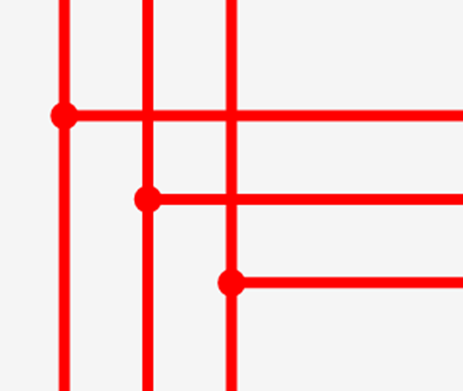
When connections are properly connected to each other, connection dots will appear:
Related Tutorials
- Replace connection type (1:00)
- Creating new connection types (4:34)
- Numbering process (6:30)
- Inserting symbols (2:09)
- Inserting and linking off-page references (2:11)