
Inserting symbols
#1
Inserting symbols
Description
This tutorial covers the different ways to insert symbols from the library.
Topics covered
Insert symbol, insert symbols on axis, symbol library, move, rotate, copy
Video version
Related tutorials
- Creating/modifying symbols and blocks (6:36)
- Linking symbols together (2:38)
- Numbering process (6:30)
- Component connection point blocks (4:00)
- Showing component properties around a symbol (2:25)
- Change active symbol library (1:00)
- Pin-out blocks/attributes (3:00)
Written version
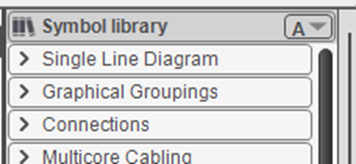
To insert a symbol onto a sheet, open the relevant folder in the Symbol Library on the right side of the SkyCAD application window:
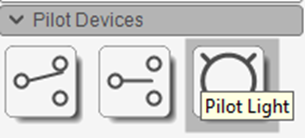
If you hover over a symbol, the description will be displayed:
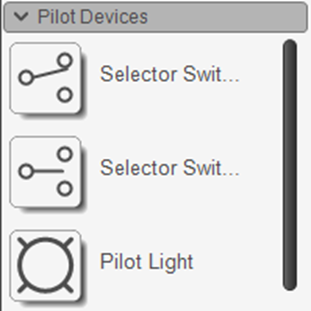
To always see the descriptions of symbols in a particular folder, select the folder, go to the Home tab and select Display thumbnails as list:
Click the symbol you want, then click again where you want the symbol inserted on the sheet (which can be directly on a connection if you wish).:
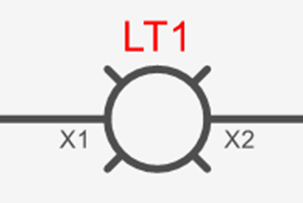
Once you do that, the component tag and pin numbers will appear.
If you click and drag a symbol to move it along the connections, the connections are automatically stretched to accommodate the new position of the symbol.
If you delete the symbol, the two connections join to bridge the gap.
Inserting multiple symbols rapidly
There are two ways to rapidly insert multiple copies of the same symbol: double-clicking and Insert symbols on axis.
Double-click on a symbol from the Symbol Library to insert it multiple times.
Hit Esc once done.
To use Insert symbols on axis, connections must exist on the sheet:
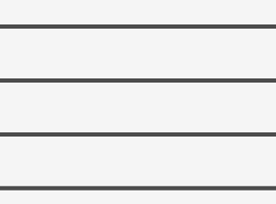
Select the symbol you want from the Symbol Library, go to the Home tab and select Insert symbols on axis:
Click once on the sheet, perpendicular to the direction of the connection, then move the mouse cursor across the connections (a dotted line will appear to indicate the axis):
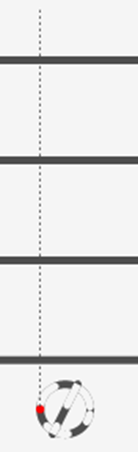
Click again to insert symbols wherever the axis intersects with connections:
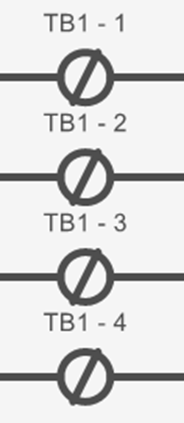
Of course, Insert symbols on axis can be used on vertical connections too.
These two methods (double-click and Insert symbols on axis) can be used together: double-click the symbol from the library and turn on/off Insert symbols on axis as needed).
Auto-rotate
If you insert a horizontally oriented symbol onto a vertical connection, it will automatically rotate, and vice versa:

If you this doesn’t work for you, explore the properties of SkyCAD in the tree view and confirm the Auto-rotate symbol property is checked.
Symbol Library folders
Symbol Library folders can be sorted:
Manually by clicking and dragging or
Alphabetically by clicking the “A” button in the Symbol Library heading:

Copying symbols or groups of symbols
To quickly copy/paste inserted symbols or groups of symbols:
Select a symbol or group of symbols on a sheet
Click and drag them as if you were moving them, but before you release the mouse button, hold CTRL on your keyboard
Release the mouse button while CTRL is pressed
A message box will prompt you for the number of copies you want
Enter the number you want and click OK