
Navigation tools
#1
Navigation tools
Description
This tutorial covers how to navigate in the schematics between elements associated together, such as coils and contacts, or off-pages references, IOs, and more.
Topics covered
Associated symbols, cross-reference, IOs, terminals, terminal strip, Off-page references
Video version
NOTE: This tutorial video was created using SkyCAD Electrical version 1.3.25. Ribbon buttons' appearance and positions may differ from your version if it's older.
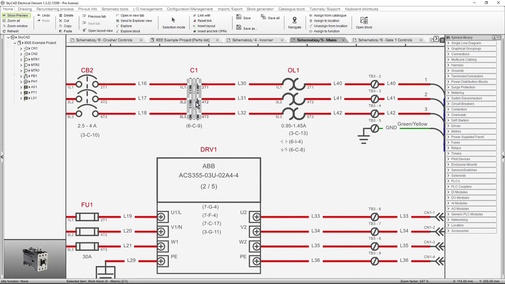
Relation tutorials
- Linking symbols together (2:38)
Written Version
Introduction
An object is often represented several times in a project.
For example, a contactor may be graphically represented by several symbols (coil, contacts) and on the panel layout. It would also be listed in the parts list and tree view component list.
SkyCAD’s navigation tools make it easy to find exactly what you’re looking for.
The navigation tools include:
Navigate command
Double-clicking a terminal symbol opens the terminal strip and highlights the terminal
Double-clicking a list block opens the relevant list
Selected objects are highlighted in other views (e.g.: component list to schematic)
Instructions
Navigate command
When you select a navigable object (symbol, component, layout, cross-reference, etc.), you can execute the Navigate command in three different ways:
Go to the Home tab and select Navigate
Right-click on the object and choose Navigate
Hit F2 (the default keyboard shortcut for Navigate)
For cross-reference texts  , in addition to these methods you can simply double-click on a cross-reference text to Navigate.
If a dialog box is displayed when you use Navigate, choose the graphical representation to which you want to navigate, then click OK.
Once the Navigate action is completed, the appropriate object(s) is highlighted on the sheet.
Here are a few examples of when Navigate is especially useful, which you can try yourself:
Select a symbol linked to a component which is represented by multiple symbols (e.g. a relay represented by coil and contact) and use Navigate
Select a component/terminal/wire in the tree view, parts list, IO list, panel layout, terminal list or wire list and use Navigate
Double-click on an OPR cross-reference text
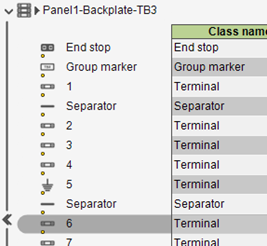
Double-clicking a terminal symbol opens the terminal strip and highlights the terminal
If you double-click on a terminal symbol  , the terminal strip is opened, and the terminal is highlighted.
Double-clicking a list block opens the relevant list
Double-clicking any list block (parts list, BOM, table of contents, etc.) inserted on a sheet will open the relevant list.
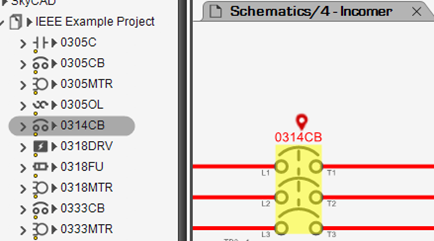
Selected objects are highlighted in other views (e.g.: component list to schematic)
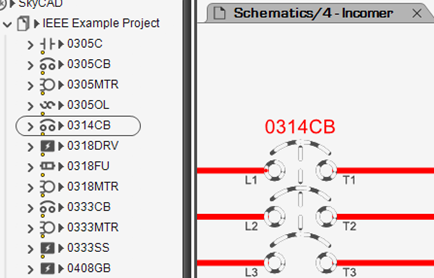
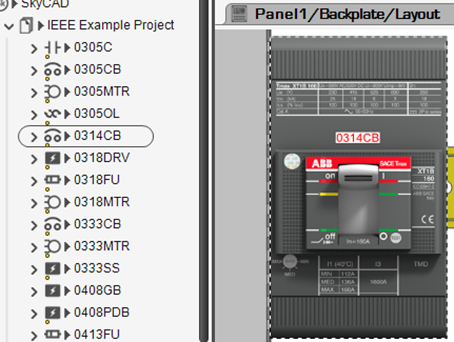
Selecting the components in the tree view will also highlight its symbols in the schematics and panel layout:
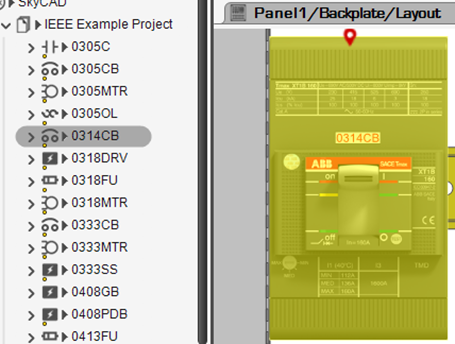
And vice versa: selecting the panel layout representation or the symbol will highlight the component in the tree view:
Related Tutorials
- Linking symbols together (2:38)