
#1
Moving Terminals Across the Block
Description
In this tutorial, you'll learn how to move terminals to the opposite side of the block or even have terminals on all four sides of the block.
Topics Covered
Block generator, flip terminal, flip connection, flip port, move terminal, move connection, move port, left, right.
Main Content
If you haven't seen the block generator tutorial yet, we suggest you watch that first, then come back to this tutorial.
If you're using the IEEE or Aus/NZ standard, by default, inputs are on the left of the block and outputs are on the right, e.g.

If you're using the IEC standard, by default, inputs are on the top of the block and outputs are on the bottom, e.g.

If you'd like to move a terminal from its default position, follow these steps:
- Right-click on the block and choose Open Block
- If you've used this block in previous projects and don't want those instances affected, follow the two sub-steps below, otherwise skip ahead to step 3
- Select the block in the tree view, go to the Show tab and select Revisions
- Expand the properties of the current revision, close the revision, and create a new revision (Revision Control tutorial)
- Go to the Drawing tab and ensure Show Empty Attributes is active. (This will help you keep track of all the text attributes, even hidden ones, and move them as needed.)
- Select the terminal you wish to move, go to the Drawing tab and select Flip Horizontally (if using IEEE or Aus/NZ), Flip Vertically (if using IEC), or Rotate 90 left/right
- Move the terminal where you want it
- Move the text attributes as desired
- If you wish to change the justification of some text attributes, select them and go to the Text Style tab
- If you end up with an offset between a terminal and the border of the block:
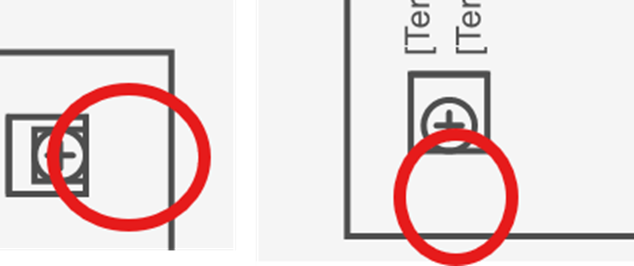
- Right-click on the entire block and choose Explore block
- Set the Contour offset property to 0
- Close the dialog box
- Once done, select the block, go to the Home tab and Save
Log in to post comments