
#1
Symbol snapping seems weird?
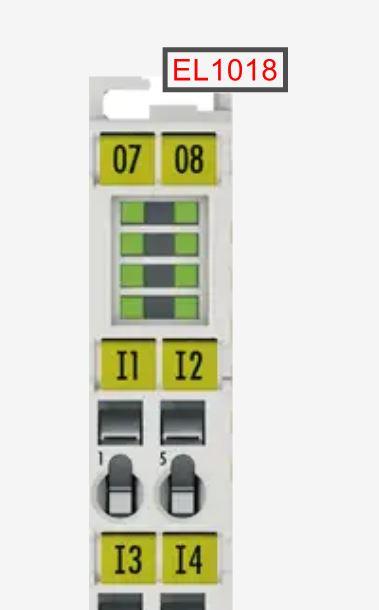
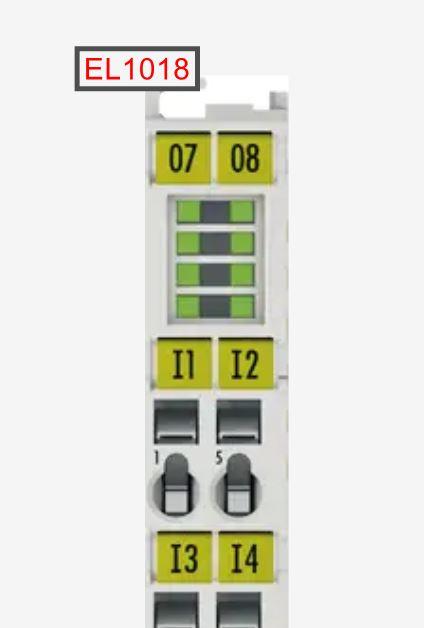
I'm trying to expand the Beckhoff module selection in the online catalogue, but i don't quite get the snapping of the symbol when i design a component...? It seems to only want to snap where i don't want it :-D
1: How is this snapping thought to work?
2: Is there a hotkey to override this snapping?
3: Are there any recommendations/guidelines for placing of e.g. symbols when designing parts for the online catalogue?
Log in to post comments
#2
Turn off Extension Axis Snap
Thanks for posting on the forum and you desire to make quality parts to be uploaded to the online catalogue!
1: How is this snapping thought to work?
The position property and contour properties of objects snap to the position property and contour properties of other objects.
For text objects, this doesn't work extremely well, as you've found.
2: Is there a hotkey to override this snapping?
Go to the Drawing tab, turn off Extension Axis Snap.
Customizable hotkeys are available in the latest version.
3: Are there any recommendations/guidelines for placing of e.g. symbols when designing parts for the online catalogue?
Not really! Just do what feels right. Whoever downloads the part, can modify it to their liking after they've imported it.
Please let us know how it goes.
#3
Ah, yes, turning that off
Ah, yes, turning that off made it work very nice. Thanks!
#4
You're welcome!
Thanks for letting us know that helped.
#5
I cannot get the software to…
I cannot get the software to not snap, why am I not seeing extension axis snap? photo attached
#6
It was renamed to Axis snap…
It was renamed to Axis snap.
It is the 5th button in your screenshot.
#7
I have tried selecting that…
I have tried selecting that and deselecting that it still snaps. Is there something else I am doing wrong or setting?
#8
What exactly is snapping…
What exactly is snapping that you don't want to snap? Could you share a screenshot?
#9
Everything, the symbols have…
Everything, the symbols have snap to the sub grid dots. I don't have any of the snap selections active in the drawing tab, I just want to be able to move the object where I want, and don't want it to snap.
#10
Thank you for the image
In this case what you are experiencing is normal, as explained in this tutorial, the Connection points can only be attached to the Main grid, if you look closely that's what's happening for example the Symbol named LT1 has 2 Connection points, that must be attached to the Main grid.
If you go into the Drawing tab and activate Show connection points you would see the Connection points (it is recommended to keep this feature off).
Let us know if this explains.