
Printing
#1
Printing
Description
This tutorial covers how to print in SkyCAD and set the default printer and printer settings.
Topics Covered
Printing, print, set printer, PDF, paper size, portrait, landscape, monochrome, grayscale, black and white, margin.
Video Version
Related Tutorials
Written Version
Printing to paper
The first time you want to print anything from SkyCAD to paper, select the project or a sheet, so the Print tab becomes available.
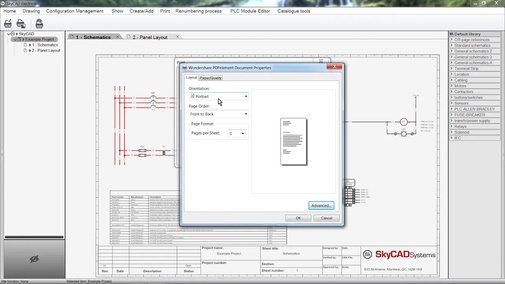
Go to the Print tab and select Set Printer.
In the Name field, use the dropdown menu to select the desired printer, then click OK.
To print all sheets in a project, select the project in the tree view, go to the Print tab, select Print document, then click OK.
To print several sheets in a project, select the project in the tree view, go to the Print tab, select Print document, CTRL+click the sheets you don’t want printed to de-select them, then click OK.
To print one sheet in a project, select the sheet, go to the Print tab, select Print current sheet.
Exporting to PDF
To export all sheets in a project to PDF, select the project in the tree view, go to the Import/Export tab and select Export Project to PDF file.
To export several sheets in a project to PDF, select the project in the tree view, go to the Import/Export tab, select Export Project to PDF file, CTRL+click the sheets you don’t want printed/exported to de-select them, then click OK.
To export one sheet in a project to PDF, select the sheet, go to the Import/Export tab and select Export Project to PDF file, select the project in the dialog box to de-select all the sheets, then select the sheet you want and click OK.
If you have the free Standard license, you can print to PDF in the same way you would print to paper, but choose your computer's PDF printer in the Set Printer dialog box.
SkyCAD's Export to PDF features is available with Advanced and Pro licenses. It creates searchable PDF files with clickable cross-references.
Monochrome/grayscale/black-and-white
To print to paper or export to PDF in monochrome, select a project or sheet, go to the Print tab and turn on Print to monochrome.
This is a global setting and will affect all future prints and exports to PDF, unless you turn it off.
Margins
To add a margin to all sheets when printing/exporting to PDF, expand the properties of the project in the tree view and select Allow for sheet punch-hole margin.
Margin sizes are not customizable yet.